
Printer Connection Diagnostic Guide
This guide explains how to use the Funnel Diagnostic Tool available on Asiga printers running on one of these firmware versions that support Funnel connectivity
- 2025-06-03-max2-ultra
- 2025-06-03-max-pro4k
- 2025-09-12-max2-ultra
- 2025-09-12-max
- 2025-08-11-pro4K
This tool checks if your printer can successfully connect to the online services it needs to function correctly with Funnel. It also explains how to identify and troubleshoot connection issues.
Navigating to the diagnostic tool requires slightly different paths for different printers
Understanding the Diagnostic Results
Navigating to the diagnostic tool requires slightly different paths for different printers:
Running the diagnostic tool on a Max 2 or Ultra model
-
Navigate to the Funnel diagnostic from the Main menu by:
Settings > General > Connectivity > Funnel Diagnostic
|
|
|
|---|


- Tap Funnel Diagnostic to begin the connection test.
- The printer will test its ability to connect to required services.

- If all services are connected properly, you will see green ticks.
- If any service shows a red "X", continue to the Troubleshooting section.
Running the diagnostic tool on a Pro4K or Max model
-
Navigate to the Funnel diagnostic from the Main menu :
Settings > Funnel Diagnostic
|
|
|
|---|


- Tap Funnel Diagnostic to begin the connection test
- The printer will test its ability to connect to required services.
|
|
|---|

- If all services are connected properly, you will see ticks.
- If any service shows a red "X", continue to the Troubleshooting section.
Understanding the Diagnostic Results
Each service the printer connects to is listed in the test results. A red "X" means the printer cannot reach that service.
|
Name |
Domain |
Port |
|---|---|---|
| Asiga API | api.asiga.com | 443 |
| AWS | awf-assets-prd-bucket.s3.ap-southeast-2.amazonaws.com | 443 |
| Auth0 | auth.asiga.com | 443 |
| IoT Broker | iot.asiga.com | 8883 |
Troubleshooting
1. Unsupported Network configuration
Connecting your Asiga printer directly to a computer via Ethernet is not supported and will not work with Funnel, even if the printer is also connected to the network over Wi-Fi.
Solution:
Choose a single connection type:
- Use only Wi-Fi, or
- Use only Ethernet (Connected directly to the network. Not via a connection to a computer).
2. All services failing
If all services show a red X:
Check the following:
- The printer’s network is not connected to the internet.
- A firewall is blocking the printer’s access to the required services.
- Some firewalls may use Deep Packet Inspection (DPI), which can interfere with connections.
What to do:
- Contact your IT team and ask them to allow access to the services listed above.
- If DPI is suspected, email funnel-support@asiga.com so we can inform you when a solution is available.
3. Some Services Failing
If only one or two services are failing:
- This is often caused by a firewall blocking specific domains or ports.
What to do:
- Contact your IT support to review your firewall settings.
- Ensure access to the domains and ports listed in the table above.
Still Having Issues? Contact Support
If you're unable to fix the problem, you will need to contact Asiga Support.
To do this, please collect the Debug Information from your printer:
Steps to Get the Debug Information:
-
Run the Funnel Diagnostic test again. Do not turn off the printer afterward.
Open your printer's Web Interface:
-
In Composer, click the Web Interface shortcut for your printer, or
Enter the printer’s IP address in a web browser on the same network.
You can find the IP address on the printer:
- Go to the connected network (Wired/Ethernet, Wireless, or Wireless Direct).
- The IP address is shown next to Web Interface.
- You can also scan the QR code to open the Web Interface on your phone.
-
-
In the Web Interface, go to the System Information tab. Below is a screenshot of System Information tab of the printers Web Interface with Debug Information highlighted
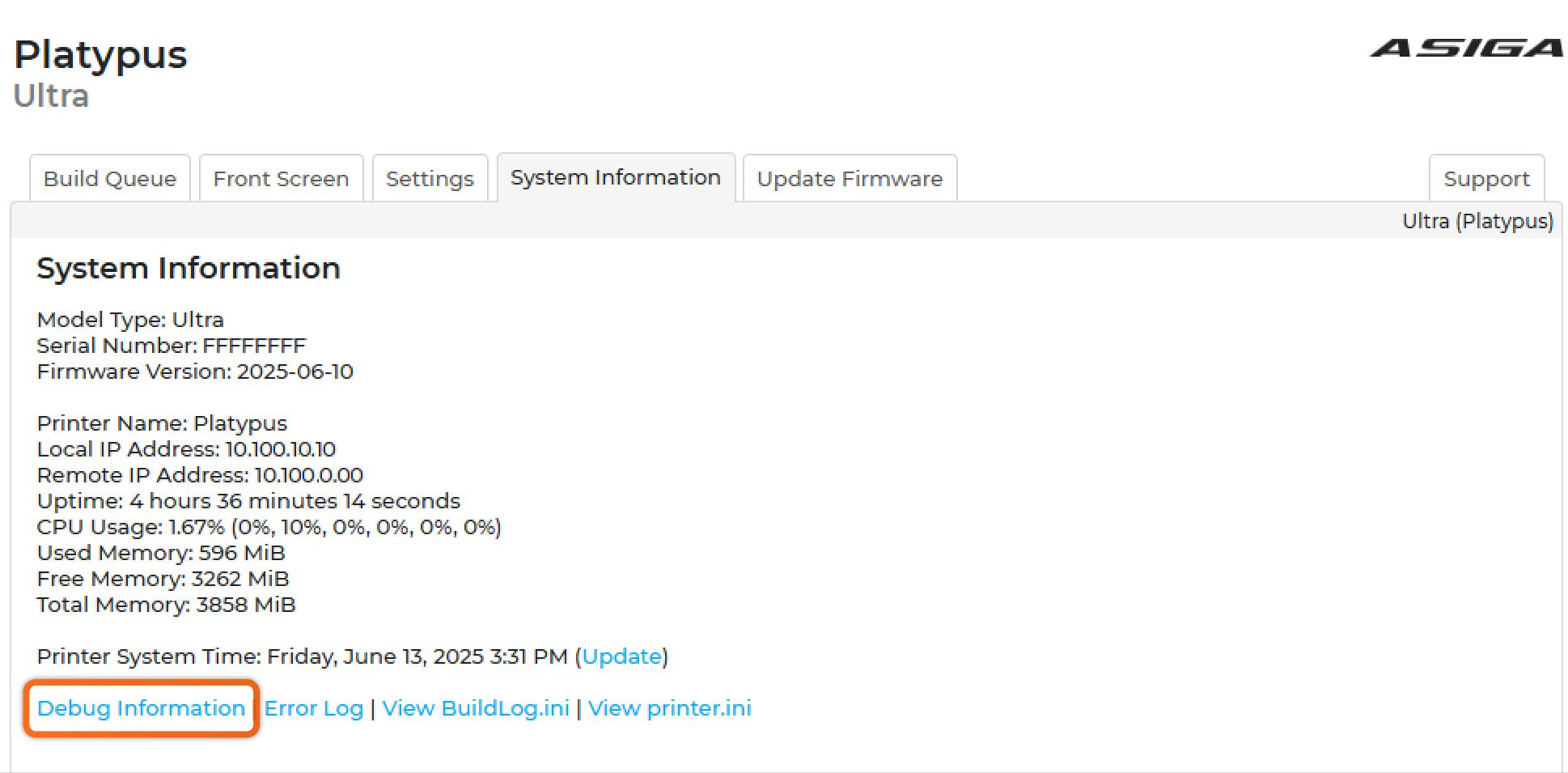
- Right-click Debug Information and select “Save link as…” to download the file.
Sending the Debug Information
You can contact support in two ways:
Option 1 – Submit via Funnel (Preferred)
- In Funnel, open your profile menu (top right).
- Select View Help.
- Search for Technical support and open the relevant option.
- Upload your Debug Information and Error Log files, and describe what you’ve tried.
Option 2 – Email Support
Send an email to funnel-support@asiga.com with:
- The Debug Information and Error Log files attached.
- A brief summary of what you’ve already attempted.
For help at any stage, don’t hesitate to contact our support team. We're here to assist you in getting your printer connected and fully operational.