
Settings
Settings is where you change how Funnel works for you: your photo, your name, your password, the language of the screen, the notifications you see and your cookie choices.
If you are an Admin or an Owner, you also get an Organisation tab for settings that apply to everyone in your organisation.
Open Settings
- Click the profile icon in the top right corner of the window.
- Choose Settings from the menu.
The Settings window opens on the Profile tab. To move between tabs, click the tab name along the top. To close Settings, click the X in the top right corner of the window.
Your changes are saved as you make them.
Profile
The Profile tab covers everything about your own account: your photo, your display name, your password, your multi-factor authentication device, and deleting your account.
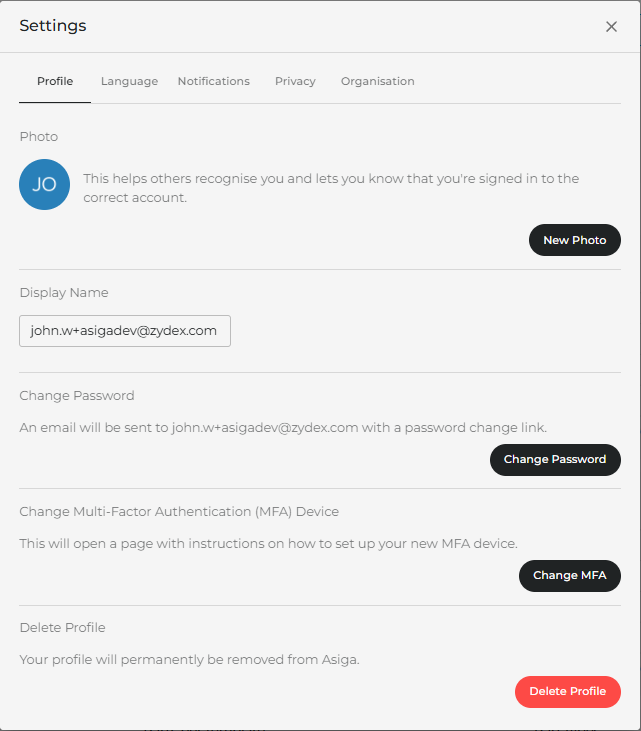
Photo
Your photo appears next to your name so colleagues can recognise you, and it shows you that you are signed in to the right account.
Funnel gets your photo from Gravatar, a free service that stores one profile picture and shares it with the websites and apps you use. You need a Gravatar account, but it is free and only takes a few minutes to set up.
Click New Photo. What happens next depends on whether you are already signed in to Gravatar in this browser:
| Your situation | What you will see |
|---|---|
| You are signed in to Gravatar with the same email address you use for Funnel | Your Gravatar account page, ready for you to change your picture |
| You are signed in to Gravatar with a different email address | A page asking which account you want to use |
| You are not signed in, or you do not have an account yet | The Gravatar sign-in page |
Once you choose a picture in Gravatar, it appears as your profile icon in Funnel.
Set up a Gravatar account
- Click New Photo. The Gravatar sign-in page opens.
-
Check the email address in the box. Funnel fills in the address you use for Funnel, which is the one we recommend, but you can change it if you prefer.
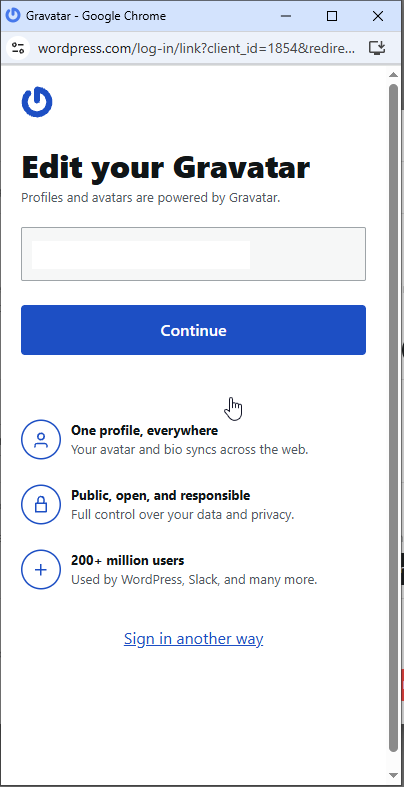
- Click Continue. Gravatar emails you a verification code.
-
Type the code into the box on screen and click Continue.
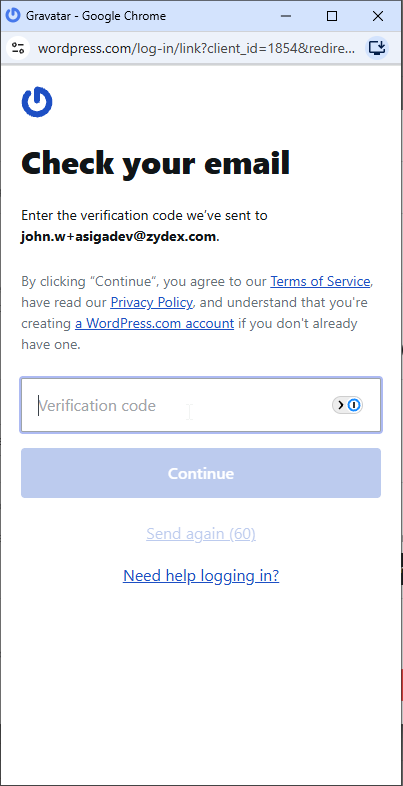
- Your Gravatar dashboard opens. Upload a picture, or take one with your camera.
Your new picture appears as your profile icon in Funnel.
Note: Gravatar is run by WordPress.com, so you may see the WordPress name while you sign up. This is normal, and it does not give WordPress access to your Funnel account.
Display Name
Your display name is how Funnel identifies you on screen to you and to your colleagues. It starts out as the email address you sign in with.
Type the name you would like to use in the Display Name box. Funnel remembers it, so it is still there the next time you sign in.
Change Password
- Click Change Password. Funnel emails you a link.
- Open the email and click the link.
- Follow the page that opens to set your new password.
If the email does not arrive within a few minutes, check your junk or spam folder.
Change Multi-Factor Authentication (MFA) Device
You only see this section if multi-factor authentication is turned on for your account.
Multi-factor authentication (MFA) is the extra step where you confirm it is really you, for example by typing a code from an app on your phone. Use this section when you change phones or switch to a different authenticator app.
Click Change MFA. A page opens with instructions for setting up your new device.
Delete Profile
Deleting your profile removes your account. You are signed out straight away and you cannot sign in again.
- Click Delete Profile.
- Check the confirmation message, then click Delete Profile to go ahead, or Cancel to keep your account.
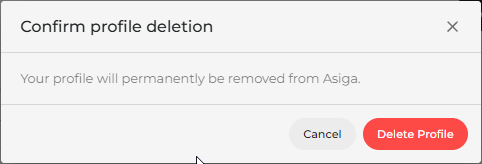
Warning: This cannot be undone.
If you are an Owner
If you have the Owner role, deleting your profile also deletes the whole organisation account, along with everyone else's access to it.
To leave without closing the organisation, first give the Owner role to someone else, then delete your profile.
Language
Choose the language Funnel uses on screen.
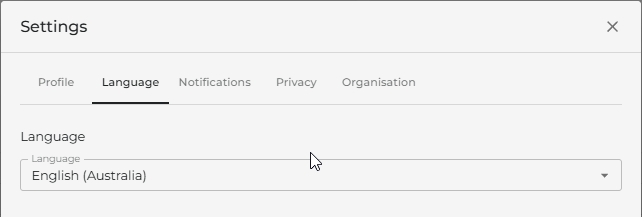
Click the Language box to open the list of available languages, then click the one you want.
Notifications
Turn real-time notifications on or off. These are the messages that tell you when a part, group, job or device needs your attention.
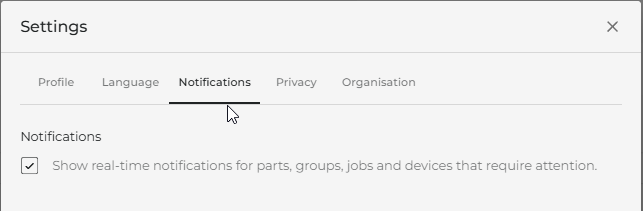
Tick the box to see notifications. Clear the box to stop them.
Privacy
Choose which cookies Funnel may use, and read the policies that explain how your information is handled.
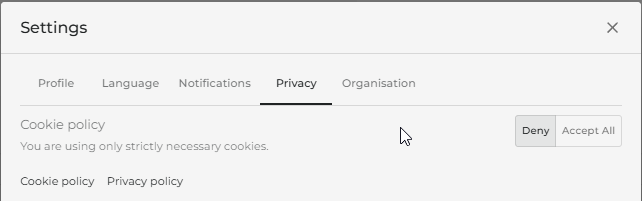
- Deny — Funnel uses only the cookies it needs to work.
- Accept All — Funnel also uses cookies from PostHog, which tell our developers how the application is being used so we can improve it. These cookies do not record who you are, and none of the information collected identifies you personally.
The Cookie policy and Privacy policy links at the bottom of the tab open the full policies.
Organisation
You only see this tab if you have the Admin or Owner role.
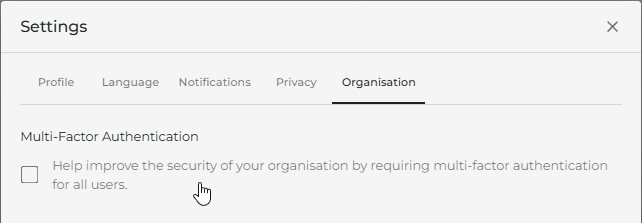
Here you decide whether everyone in your organisation must use multi-factor authentication (MFA) — the extra step where a user confirms it is really them, for example with a code from an app on their phone.
Turn on MFA for everyone
-
Tick the Multi-Factor Authentication box. A confirmation window opens.
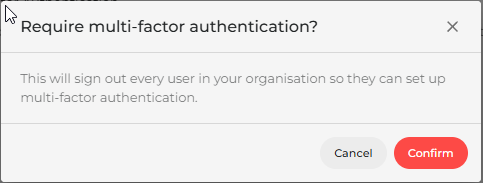
- Click Confirm, or Cancel to leave things as they are.
When you confirm, everyone currently signed in to the organisation is signed out. The next time each person signs in, they are asked to set up multi-factor authentication before they can continue.
Tip: Let your colleagues know before you do this, so they are not caught out by being signed out mid-task.
Turn off the requirement
Clear the Multi-Factor Authentication box.
People who have already set up multi-factor authentication keep using it as normal — turning the requirement off does not remove it from their accounts. New users are no longer asked to set it up.
| << Prev |